ECE 3310
Electrical Circuits: Laboratory
Multisim (Student Version)
©2008 by Professor Mohamad H. Hassoun
Multisim is an electronic circuit simulator supplied by
National Instruments (NI). It runs as an application on your PC. The student version
of NI Multisim is required (buy
it on-line) for this course. A 30 day free trial version can be downloaded
from the NI website.
You
may think of Multisim as a virtual laboratory. You will mainly use this
simulator in pre-lab and post-lab activities. The results of your simulations
represent the ideal circuit response. In your lab reports, you will use those
results to benchmark the experimental results obtained from the actual physical
circuit.
Resistive
Circuit Analysis
Run
the software by executing Multisim. The following user interface window will
display. The blank region inside is the Schematics
window.

Multisim
software integrates two programs: A circuit schematics editor, and a circuit
simulator. The schematics editor allows the user to build a virtual circuit by
connecting various electronic components; basically, the user “draws” the
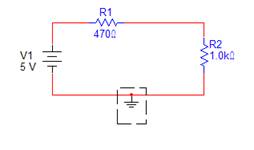
schematic of the circuit to be analyzed. Let us assume that the circuit to be
analyzed is the following simple voltage divider circuit. We are interested in
all component voltages and currents.
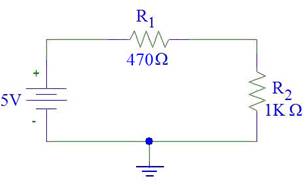
1. The above circuit has three components: Two resistors
and one DC voltage supply. In addition, we must specify a reference (ground)
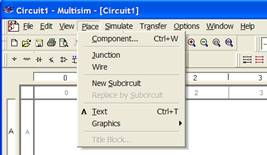
node. From the Place Menu, select Component. This opens the Component Selection Menu.
Alternatively, click (i.e., left click) on the
 icon in the Components Toolbar
  (if you do not see this graphic menu, select
“Toolbarsà Components” from the View Menu).
(if you do not see this graphic menu, select
“Toolbarsà Components” from the View Menu).
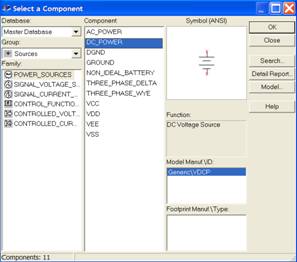
2. In the Component
Selection Menu, set “Database” to “Master database” and “Group” to
“Sources.” Next, select “Power_Sources.” This will list a number of power source
components under the “Component” list; click on DC_Power. You should see the symbol for a DC voltage
source under the “Symbol” area. Click “OK” to place the symbol in the
Schematics window. Now, as you move the mouse cursor over the Schematics
window, you will see the symbol of a DC voltage source tracking the mouse.
Click the left button of the mouse to insert the component. The last inserted
component can be removed if you select Undo
from the Edit Menu. Alternatively, a
part can be removed if you select it by clicking its symbol (a dashed box is
placed around the symbol) and then selecting Delete from the Edit Menu, or by pressing delete key on the keyboard. The default name for the first inserted
DC source is V1. The second inserted
source name would be V2, and so on. The default value of the source is 12V. The
position of the name label (and value label) can be relocated by clicking and
holding and then dragging the label. Similarly, the whole symbol can be
repositioned by clicking and holding the left button of the mouse (at the
center of the symbol) and then dragging.

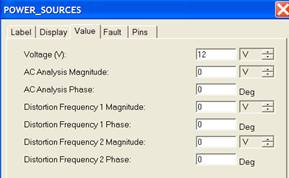
3. You may now edit the voltage value of the inserted DC source by double clicking its symbol. This will open the POWER_SOURCES window. Type the desired
voltage value (5V in this case) and click “OK.” The name of the supply can also
be edited under the “Label” tag in this menu.
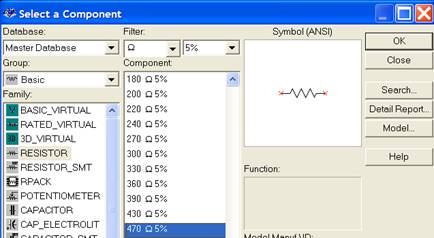
4. Repeat Steps 1 and 2 for the two resistors (here,
select the “Basic” Group and the “Resistor” Family of components). The filter parameters
in the Component Selection window
should be set to W and 5% for the 470W resistor, and kW and 5% for the 1KW resistor. The filter allows for
faster location of the specific component. The inserted resistors names will
automatically be set to R1 and R2, respectively.
The Schematic
Window should now look as shown below.

Note: Multisim supports the following (case sensitive)
scale factors for component values: T (tera) = 1012, G (giga) = 109,
M (mega) = 106, k (kilo) = 103, m (milli) = 10-3,
m (micro) = 10-6, n (nano) = 10-9
and p (pico) = 10-12.
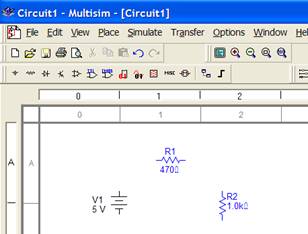
5. The displayed symbol for an inserted component can be
rotated. Select R2 (by left clicking the mouse on the resistor symbol), then
select 90 Clockwise from the Edit Menu. Alternatively, right click
the resistor and select 90 Clockwise
from the automatically displayed menu.
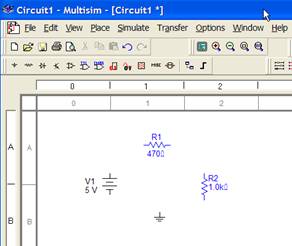
6. Every simulated circuit must have a reference (ground)
node. Open the Place Menu and select
the “GROUND” component from the “POWER_SOURCES” Family, under the “Sources”
Group (refer to Steps 1 and 2). Click OK to close the menu. Click the mouse
inside the Schematics window to insert the ground symbol.
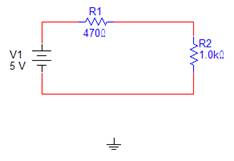
7. The last step in drawing the circuit schematic is to
interconnect the components. Select Wire
from the Place Menu. The mouse
cursor changes to a “+” cursor. Point the cursor to the upper tip of the DC
source and click. Then, click the mouse at the left terminal of R1. This
inserts a wire connecting the DC source to R1. Repeat this process to finish
connecting the remaining components together, according to the given circuit
topology. Right click the mouse upon completing the circuit wiring; this,
deactivates the Wire Tool. Now, try
dragging a component and observe how the position of the connecting wires
change. A wire segment can be repositioned by dragging (left click, hold and
move) it with the mouse.
8. The final schematic editing step is to define a
voltage reference node for the circuit. This can be accomplished by dragging
the ground symbol towards the bottom wire. As soon as the upper tip of the
ground symbol touches the wire, it automatically gets connected to the circuit.
The circuit position can be changed by using the mouse to select the whole
circuit (all components and wires will be highlighted); then click and hold the
center of any component and drag it. This will reposition the whole circuit.
9. A virtual Multimeter instrument is available in
Multisim. Double click the  icon, located in the Instruments Toolbar on the right hand side of the Multisim
interface (if you do not see the Instrument
Toolbar, you can display it by selecting “Instruments” from the ViewàToolbars Menu).
Toolbars can be relocated from the side to the top Menu (and vice versa) by dragging
the Toolbar at its base (i.e., at the Toolbar “
icon, located in the Instruments Toolbar on the right hand side of the Multisim
interface (if you do not see the Instrument
Toolbar, you can display it by selecting “Instruments” from the ViewàToolbars Menu).
Toolbars can be relocated from the side to the top Menu (and vice versa) by dragging
the Toolbar at its base (i.e., at the Toolbar “ ” or “
 ” shaped
region). Double clicking the icon pastes the multimeter symbol (
” shaped
region). Double clicking the icon pastes the multimeter symbol ( ) in the
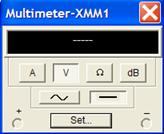
circuit area. Double clicking this symbol opens the Multimeter window. The user
can set the multimeter mode to Voltage, Current or Ohm measurement and to DC or
AC signals. Select DC Volts as shown
below. The multimeter is now a voltmeter which is set to measure DC voltages
across a circuit component.
) in the
circuit area. Double clicking this symbol opens the Multimeter window. The user
can set the multimeter mode to Voltage, Current or Ohm measurement and to DC or
AC signals. Select DC Volts as shown
below. The multimeter is now a voltmeter which is set to measure DC voltages
across a circuit component.
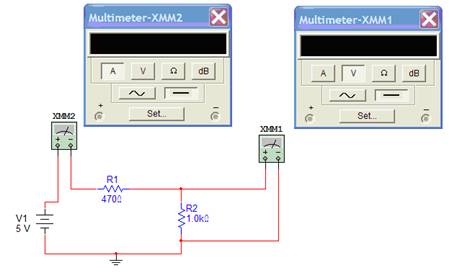
Connect the
Voltmeter across R2 as shown below.

Insert a second Multimeter by clicking on  and then clicking a location next to the
circuit where you would like to insert the Multimeter. Configure the Multimeter
for DC current measurement (Ammeter). Insert the Ammeter in series with R1 to
measure the loop current. To do that, the wire connecting the DC source and R1
must be deleted first (click on it and then press delete). Use the Wire Tool to
connect the left (+) terminal of the Ammeter to the DC source. Next, connect
the (-) terminal of the Ammeter to the left terminal of R1. The resulting
circuit should look like the one below.
and then clicking a location next to the
circuit where you would like to insert the Multimeter. Configure the Multimeter
for DC current measurement (Ammeter). Insert the Ammeter in series with R1 to
measure the loop current. To do that, the wire connecting the DC source and R1
must be deleted first (click on it and then press delete). Use the Wire Tool to
connect the left (+) terminal of the Ammeter to the DC source. Next, connect
the (-) terminal of the Ammeter to the left terminal of R1. The resulting
circuit should look like the one below.
10.Now, you may simulate the circuit. Choose Run from the Simulate Menu or click on
the “1” on the switch symbol  . The
simulation results are shown in the figure below.
. The
simulation results are shown in the figure below.

The voltage across R2 is 3.401V (which can be
confirmed using the voltage division formula: VR2 = V1*R2/(R1+R2) =
5*1000/(1470) = 3.401V. The voltage across R1 can be computed as the difference
between its node voltages (i.e., 5 – 3.401 = 1.599V, with “+” polarity to the
left of R1). The Ammeter displays the value of the loop current. Since all
components are connected in series, they all share the same current of 3.401mA.
We can verify the value of this current by applying Ohm’s law (V = R*I) for
resistor R2. Here, I = VR2/R2 = 3.401V/1000W = 3.401mA.
Note:
The simulation must be terminated (press the “0”on ) before
you can make changes to the existing circuit.
Exercise
Employ
Multisim to find and display all resistor voltages and branch currents, in the
following resistive DC circuit.

Transient Analysis
Consider
the following RC circuit. Employ Multisim
to find and plot the transient
response of the capacitor
voltage. Assume that the initial capacitor voltage is zero.
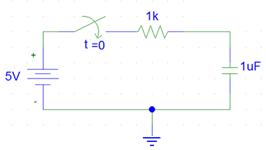
First,
draw the circuit schematic and set component values. The capacitor can be
selected by clicking  and then selecting “CAPACITOR” (and selecting
its value). The switch component can
be selected by clicking and then selecting “SWITCH (SPDT).” Choose
“Flip Horizontal” from the Edit Menu
in order to change the orientation of the switch from
and then selecting “CAPACITOR” (and selecting
its value). The switch component can
be selected by clicking and then selecting “SWITCH (SPDT).” Choose
“Flip Horizontal” from the Edit Menu
in order to change the orientation of the switch from  to
to  . The
circuit should look like the one in the following figure.
. The
circuit should look like the one in the following figure.
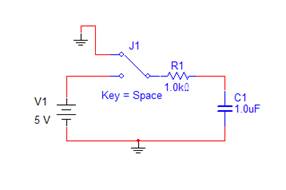
The
SPDT (single pole double throw) switch can be toggled each time the user
presses the space bar on the keyboard. When the switch in the lower position,
it will connect the 5V source to the rest of the circuit. This charges the capacitor. On the other hand,
when the switch is in the upper position, it will result in a parallel RC circuit
that discharges the capacitor.
The capacitor voltage waveform will be displayed on the (virtual)
Agilent Oscilloscope. Double click the  icon in the Instruments Toolbar. This will
insert the scope symbol in the schematics editor window.
icon in the Instruments Toolbar. This will
insert the scope symbol in the schematics editor window.
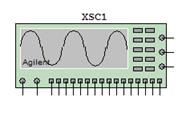
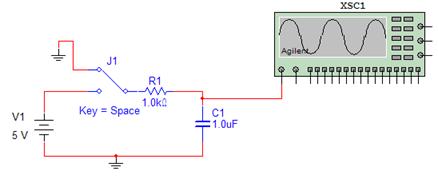
Connect the scope’s Channel 1 to the upper terminal of the
capacitor. There is no need to connect the scope’s ground to the circuit
ground; the simulator sets that connection by default.
Now, double click the scope symbol to open and display the Agilent
scope front panel. Press the ON switch to turn on the scope. Set the scope to
display Channel 1 in 2V/div resolution, and set its time resolution to 2ms/div.
Consult the Oscilloscope Unit for a tutorial on
using the Agilent Scope.
Click on the switch symbol to select it. Toggle the space bar on the keyboard and observe
how the switch position is changed. Leave
the switch in the upper position (this, connects R1 to ground). Now, run the simulation. Watch the scope trace. The
displayed waveform of the capacitor voltage is zero, as expected. As soon as
the trace refreshes on the left hand side of the screen, press the space bar. This will connect the 5V
source to the circuit and the waveform of a charging capacitor voltage shows on
the display. As soon as the capacitor becomes fully charged, press the space
bar again. This will disconnect the source and connect the resistor to ground.
The resulting circuit is a parallel RC circuit, which will discharge the
capacitor into R1. Here, the scope will display an exponentially decaying
waveform. You can repeat the experiment by toggling the switch. Once you have a
complete waveform of a charging/discharging capacitor voltage (as in the figure
below), press the pause button ( ) in the
main menu.
) in the
main menu.
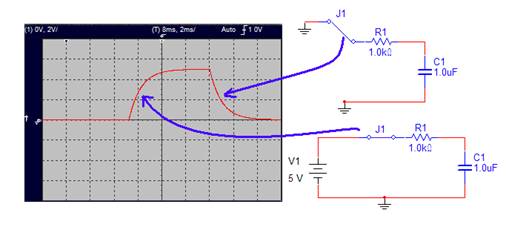
Exercise
Employ
Multisim to find and display (on the Agilent virtual scope) the transient
response of the capacitor voltage in a series RC circuit with R = 1kW and C = 1mF. Assume that the input source is a square signal with
minimum voltage of 0V, maximum voltage of 5V, 50% duty cycle and frequency of
60 Hz.
Use
Multisim’s virtual Agilent function generator (AFG) to generate the square
wave. The virtual AFG can be activated by simply double clicking on the AFG
icon in the right hand side menu (refer to the figure below). This will insert
the AFG instrument symbol (labeled XFG1) in the work area. Next, double click
the inserted symbol to display the front panel of the virtual AFG. Refer to the
Function Generator Unit for a tutorial on
how to use the Agilent function generator.


Multisim also supports some generic menu driven instruments such
as a generic function generator and a generic scope. The following is a screen
capture of the solution to the above RC circuit driven by a square wave. The
figure shows Multisim’s generic function generator and generic scope and their
settings.
